#sysctl -w net.ipv6.conf.all.disable_ipv6=1
#sysctl -w net.ipv6.conf.default.disable_ipv6=1
#sysctl -w net.ipv6.conf.lo.disable_ipv6=1
//code to check
#ip a
...
//should be no IPv6 entry now.
#sysctl -w net.ipv6.conf.all.disable_ipv6=1
#sysctl -w net.ipv6.conf.default.disable_ipv6=1
#sysctl -w net.ipv6.conf.lo.disable_ipv6=1
//code to check
#ip a
...
//should be no IPv6 entry now.
#crontab -e
0 3 * * * opkg update && opkg list-upgradable | cut -d ' ' -f 1 | while read pkg; do opkg upgrade "$pkg"; done
>
>
>
#/etc/init.d/cron enable
#/etc/init.d/cron start
Reference Link
Environment:
Tips:
SQLPLUS > select value from nls_database_parameters

Notes:
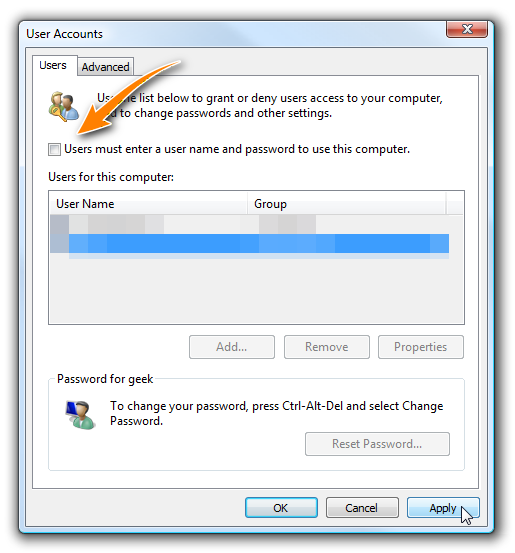
默认安装的Windows 11没有启用自动登录的选项,以下方法首先修改注册表启用选项,然后使用userpasswords2自动登录界面进行设置。

Computer\HKEY_LOCAL_MACHINE\SOFTWARE\Microsoft\Windows NT\CurrentVersion\PasswordLess\Device
Reference: How to Log In Automatically to Windows 11
wget -O ipk.pub https://master.dl.sourceforge.net/project/openwrt-passwall-build/ipk.pub
opkg-key add ipk.pub
read release arch << EOF
$(. /etc/openwrt_release ; echo ${DISTRIB_RELEASE%.*} $DISTRIB_ARCH)
EOF
for feed in passwall_luci passwall_packages passwall2; do
echo "src/gz $feed https://master.dl.sourceforge.net/project/openwrt-passwall-build/releases/packages-$release/$arch/$feed" >> /etc/opkg/customfeeds.conf
done
opkg update
#Then update the package in web for luci-pa..
Reference link.
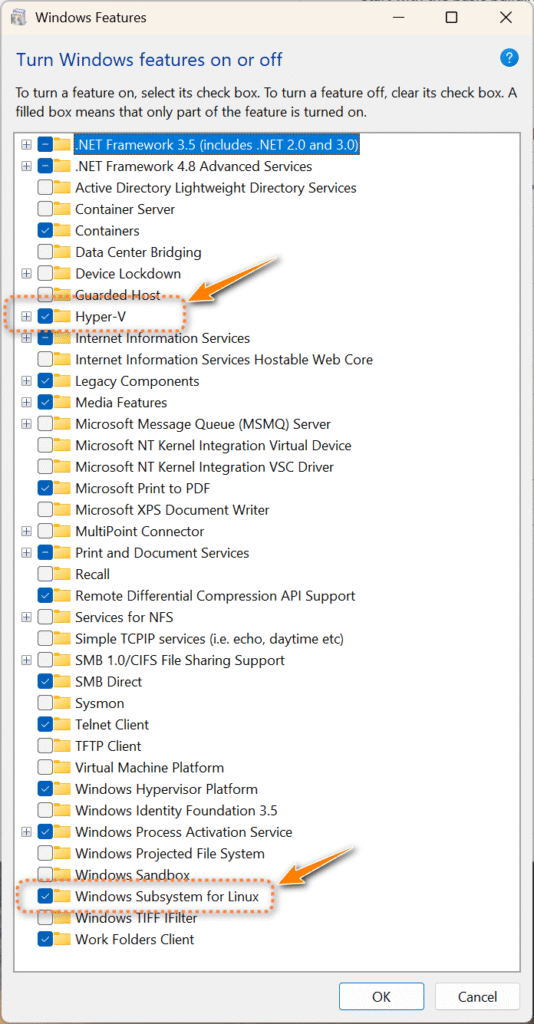
Pre-requirements:
Windows Feature:
+ Hyper-V
+Windows Subsystem for Linux

start > powershell (as Administrator)
PS> wsl --install
儅TDM系統的刀具數據量變大之後,常常會有批量刪除,修改和整理數據的需要。使用TDM Control可以對刀具主數據進行快速的批量化的維護。
這裏碰到客戶聞到:我要刪除某個整套刀數據,但是這個整套刀在十幾個刀具清單中使用,一個個到刀具清單的BOM表裏去刪除太麻煩了。有沒有快速的方法?
這裏請看操作視頻:
Edit Tables功能一般我們用作對數據表進行檢索然後修改數據記錄,其實也可以對數據記錄作刪除。例如這裏用到的對數據記錄進行“Mark to delete”操作,然後點擊Modify就會對標注為刪除的記錄進行直接刪除(注意,此操作需要對TDM系統的數據表完全理解和掌握,如果不是很確定,可以咨詢TDM系統技術支持)。
参考链接:
https://www.pctips.com/create-local-user-account
已经成功通过【设置】页创建本地账号,接下来需要研究一下:
在运行安装TDM客户端时,可以选择TNC/TCR模式

这个模式下,客户端所需的大部分固定资源文件(Exe程序,配置等)都想自动下载同步到本地,从而优化TDM系统启动速度。当服务器上的程序文件更新时,客户端也会自动下载更新的程序文件。
所有这些都取决于启动配置文件tmsStart_x64.ini。其中以下配置决定是哪些文件的更新会出发这个自动下载更新动作:
...
// General settings
//
// Replication mode: 0 = No replacition
// 1 = Sync always when local file timestamp is older
// 2 = Start sync only when local update.txt is older
//
//
// Replication code: 0 = No replication
// 1 = Sync without directories
// 2 = Sync with directories
//
// 122221...
// +- System
// +-- Form Templates
// +--- Scripts
// +---- Images
// +----- Messages
// +------ Application
//----------------------------------------------------------------------------
Replicationmode : TMS_REPLICATIONMODE=2
// Replicationcode : TMS_REPLICATIONCODE=11200220
Replicationcode : TMS_REPLICATIONCODE=11222200
其中的…MODE=2,代表了当本地的update.txt比服务器版本旧时(即服务器有更新的update.txt文件)将触发客户端更新并自动下载更新文件。
之前一直尝试更新服务器的<TMS_HOME>\SYS\update.txt,但是始终无法触发客户端程序更新。通过观察发现,客户端的SYS\文件夹内容结构和服务器的<TMS_HOME>\SYS文件夹结构是不一样的。